
Take your first steps by uploading a document and getting its parsed text and tables.
The heart of DocuPipe is its ability to convert any document to a standard output that has consistently defined fields. We call this extraction process standardization.
To make standardization useful, define a consistent structure and clarify how you want DocuPipe to interpret each document type. We call this set of definitions a schema. Think of a schema as a collection of slots for information you expect to find (e.g., a rental lease might need monthly amount and lease end date values).
DocuPipe makes it easy to describe how you want to understand your documents with minimal effort.
The workflow consists of three parts:
- Upload a document.
- Define what you want to extract from this document type. This generates a Schema.
- Extract results from many documents, using your schema. This generates a Standardization.
Upload Documents
This tutorial will follow along a toy problem of standardizing rental leases. You can follow along with our example, or extract a completely different document.
Here's an example lease, which you can use to follow along this guide.
First order of business is to upload a document. You can do this manually from the Documents dashboard or programmatically with the API.
Posting a Document with Code
First order of business it to use our API to Submit a Document for Processing. Replace YOUR_API_KEY with your actual API key obtained in the previous step. Supported file formats include PDF, images (JPG, PNG, WEBP), text files, and JSON. Regardless of the format, always base-64 encode your input document as shown below.
import base64
import requests

url = "https://app.docupipe.ai/document"
api_key = "YOUR_API_KEY"

payload = {"document": {"file": {
    "contents": base64.b64encode(open("example_document.pdf", 'rb').read()).decode(),
    "filename": "example_document.pdf"
}}}
headers = {
    "accept": "application/json",
    "content-type": "application/json",
    "X-API-Key": api_key
}

response = requests.post(url, json=payload, headers=headers)
document_id = response.json()['documentId']
const fetch = require('node-fetch');
const fs = require('fs');
// Replace with your actual DocuPipe API key
const api_key = "YOUR_API_KEY";
const url = "https://app.docupipe.ai/document";
// Read and encode the file in base64
const filePath = "example_document.pdf";
const fileContents = fs.readFileSync(filePath);
const base64Content = Buffer.from(fileContents).toString('base64');
// Construct the JSON payload
const payload = {
document: {
file: {
contents: base64Content,
filename: filePath
}
}
};
// Make the POST request with JSON payload
fetch(url, {
method: 'POST',
headers: {
"Accept": "application/json",
"Content-Type": "application/json",
"X-API-Key": api_key
},
body: JSON.stringify(payload)
})
.then(response => response.json())
.then(data => {
const document_id = data.documentId;
console.log(document_id); // Output the document ID
})
.catch(error => console.error('Error:', error));
If you print the response, you'll see it returns the document ID and the job ID. You can use those identifiers later to fetch AI- and human-readable results:
print(response)
=> {'documentId': '96dde1aa', 'jobId': '42ace16a'}
That response is essentially a pointer you can use to query the document's results with a GET request.
Polling for Upload Job Completion
As soon as you upload a document, DocuPipe extracts the underlying text, tables, and a clean textual representation for both human and AI readers. This can take seconds or minutes, depending on the file size.
Poll the job endpoint (or listen for a webhook) until processing completes:
import time
import requests

job_id = "42ace16a"

def poll_job(job_id):
    url = f"https://app.docupipe.ai/job/{job_id}"
    headers = {
        "accept": "application/json",
        "X-API-Key": "YOUR_API_KEY"
    }

    status = "processing"
    wait_seconds = 2
    total_attempts = 0

    while status == "processing":
        total_attempts += 1
        if total_attempts > 10:
            raise RuntimeError("failed to parse document")

        response = requests.get(url, headers=headers)
        response.raise_for_status()  # good practice
        status = response.json().get("status")
        print(status)

        time.sleep(wait_seconds)
        wait_seconds *= 2  # exponential backoff

    return response.json()

print(poll_job(job_id))
import time
import requests

job_id = "42ace16a"

def poll_job(job_id):
    url = f"https://app.docupipe.ai/job/{job_id}"
    headers = {
        "accept": "application/json",
        "X-API-Key": "YOUR_API_KEY"
    }

    status = "processing"
    wait_seconds = 2
    total_attempts = 0

    while status == "processing":
        total_attempts += 1
        if total_attempts > 10:
            raise RuntimeError("failed to parse document")

        response = requests.get(url, headers=headers)
        response.raise_for_status()  # good practice
        status = response.json().get("status")
        print(status)

        time.sleep(wait_seconds)
        wait_seconds *= 2  # exponential backoff

    return response.json()

print(poll_job(job_id))
Once done, you know your document is ready and you can now standardize it using a Schema.
You can avoid polling altogether by registering a webhook, which notifies you as soon as parsing or standardization completes. Learn more in the webhooks guide.
Building a Schema
You can define a schema with code, but it's usually easier to do this part interactively from your dashboard. Select one or more example documents and describe, in plain text, exactly what you want to extract.
Here's an example: go to the Documents tab and select your document.
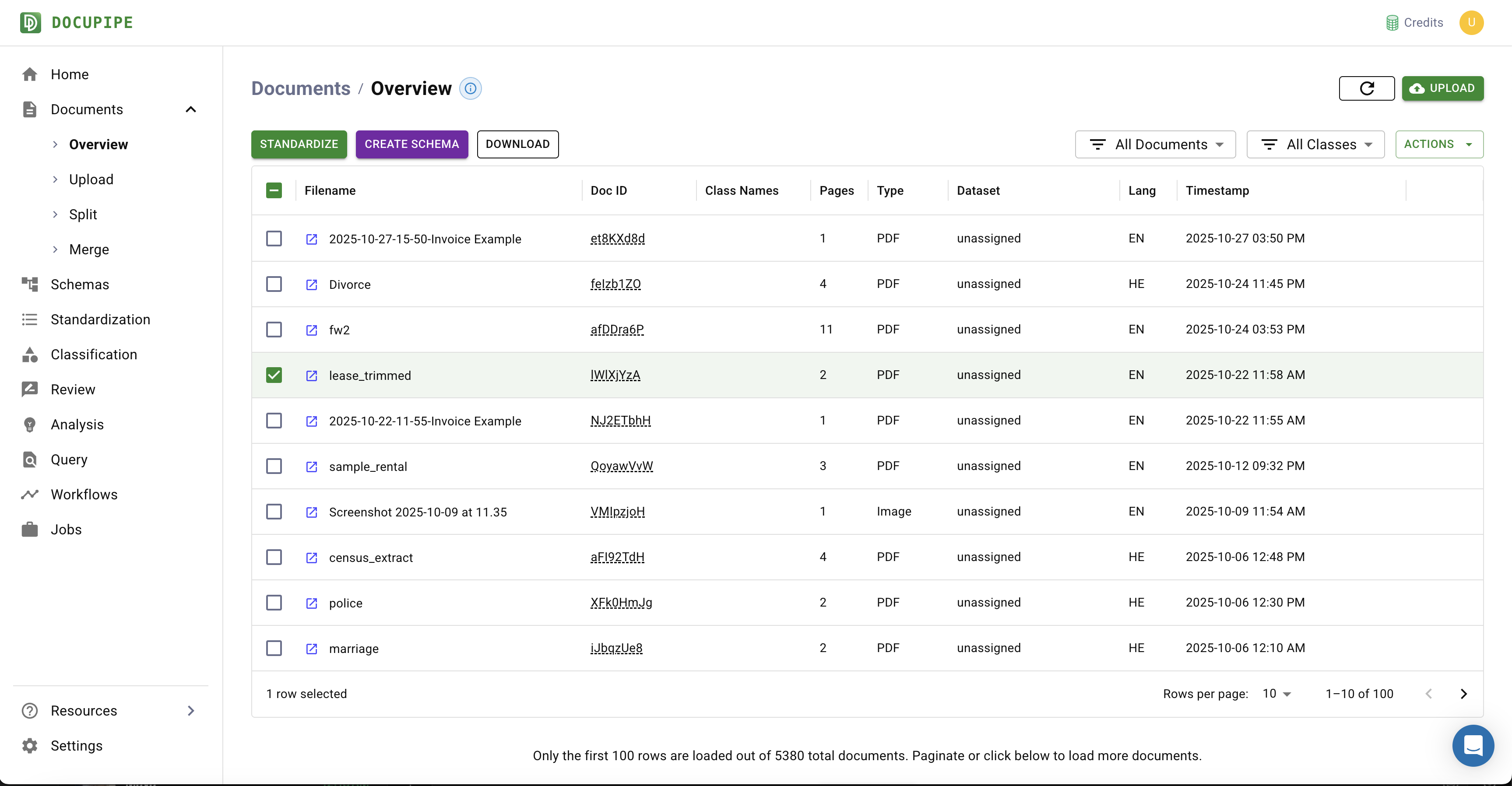
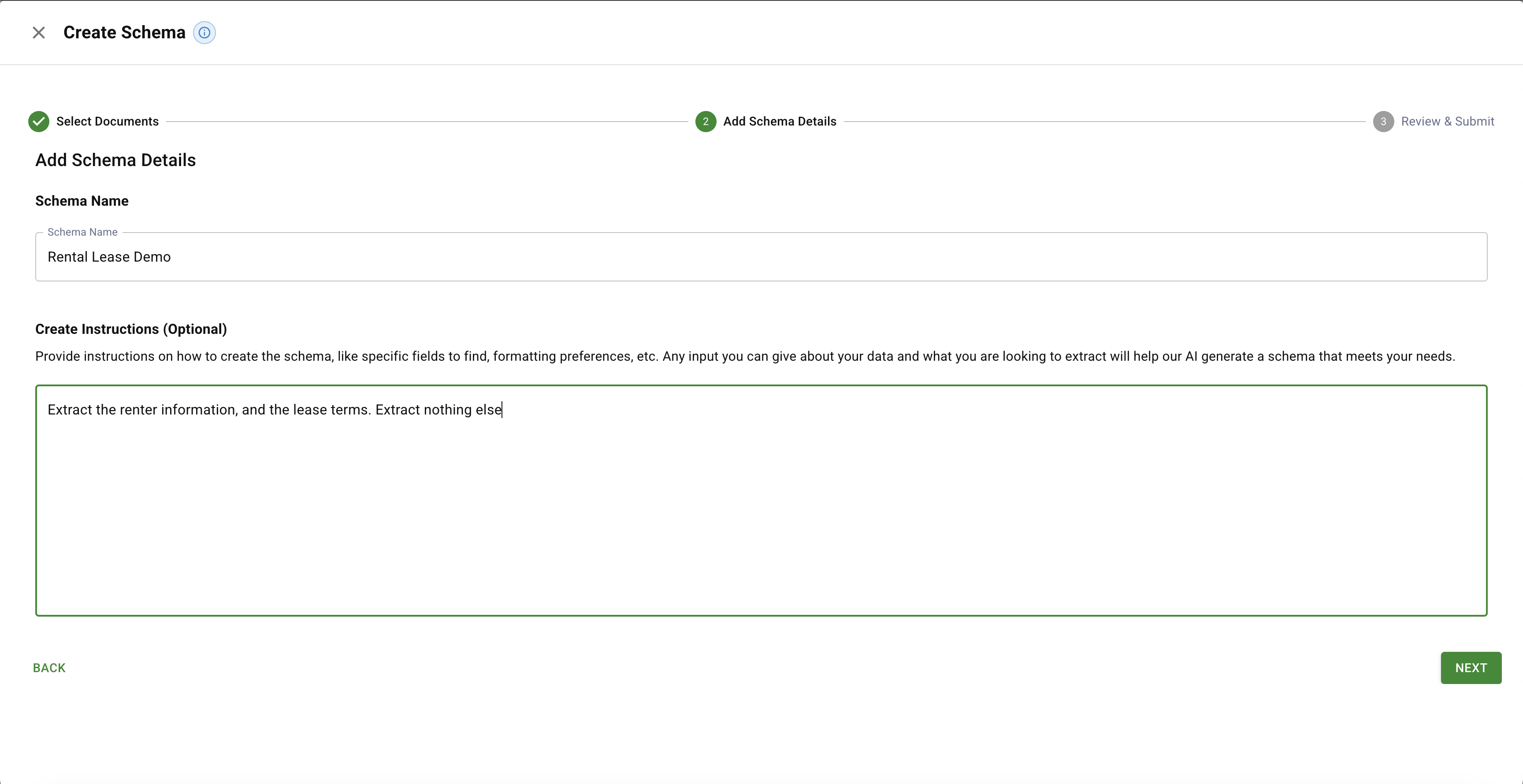
Click Create Schema and type instructions for how you want to understand rental leases.
You can be extremely thorough. For this demo we'll keep things intentionally short: "Extract the renter information and the lease terms. Extract nothing else."
Click Next and submit. After a short while you will get a schema that defines the slots for extraction. Click any schema to inspect or edit it.
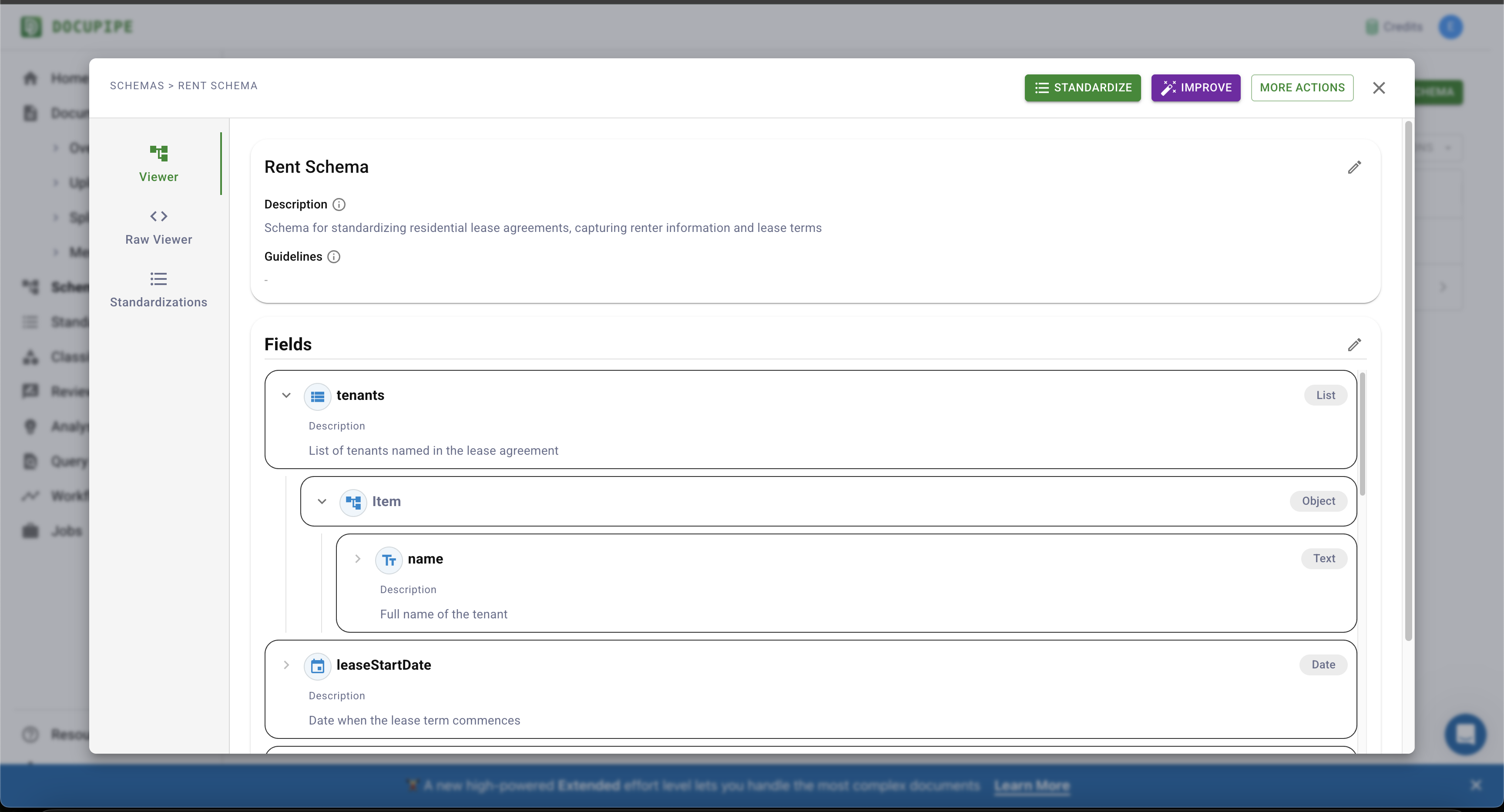
Now let's use this schema to extract information from documents.
Standardizing a Document Using a Schema
First, you need to make a Standardize request, this takes in your doucment id and your schema id:
HEADERS = {
    "accept": "application/json",
    "X-API-Key": "YOUR_API_KEY"
}

def standardize_batch(doc_ids, schema_id):
    """Standardize a batch of documents."""
    url = f"https://app.docupipe.ai/v2/standardize/batch"
    payload = {"schemaId": schema_id, "documentIds": doc_ids}
    response = requests.post(url, json=payload, headers=HEADERS)
    assert response.status_code == 200
    return {"jobId": res_json["jobId"], "standardizationIds": res_json["standardizationIds"]}

json_response = standardize_batch(['exampleDocumenId'], 'schema_id)
HEADERS = {
"accept": "application/json",
"X-API-Key": "YOUR_API_KEY"
}
async function standardizeBatch(docIds, schemaId) {
const url = "https://app.docupipe.ai/v2/standardize/batch";
const payload = { schemaId, documentIds: docIds };
const response = await fetch(url, {
method: "POST",
headers: HEADERS,
body: JSON.stringify(payload)
});
if (!response.ok) throw new Error("Request failed");
const resJson = await response.json();
return {
jobId: resJson.jobId,
standardizationIds: resJson.standardizationIds
};
}
standardizeBatch(["exampleDocumentId"], "schema_id");This will give back a payload with jobId. Poll for its completion as before - the job will name a standardizationId which lets you get the result, once the job is in a completed state. Then finally call Retrieve a Standardization
HEADERS = {
    "accept": "application/json",
    "X-API-Key": "YOUR_API_KEY"
}
std_id = json_response['standardizationIds'][0]

def get_std(std_id):
    """Retrieve standardized document results from DocuPipe."""
    url = f"{APP_URL}/standardization/{std_id}"
    response = requests.get(url, headers=HEADERS)
    if response.status_code == 200:
        return response.json()
    return None

print(get_std(std_id))
const HEADERS = {
accept: "application/json",
"X-API-Key": "YOUR_API_KEY"
};
const stdId = jsonResponse.standardizationIds[0];
async function getStd(stdId) {
const url = `${APP_URL}/standardization/${stdId}`;
const response = await fetch(url, { headers: HEADERS });
if (response.ok) {
return await response.json();
}
return null;
}
getStd(stdId).then(console.log);This will print the standardization payload - simply a JSON that contains all the things we asked for in our schema.
{
  "renterInformation": {
    "tenantName": "Silvia Mando",
    "rentalAddress": {
      "street": "9876 Cherry Avenue, Apartment 426",
      "city": null,
      "state": null,
      "zip": null
    }
  },
  "leaseTerms": {
    "agreementDate": "2012-06-15",
    "leaseType": "Fixed-Term",
    "leaseStartDate": "2012-07-01",
    "leaseEndDate": "2013-06-30",
    "leaseDuration": "one year",
    "monthlyRent": 685,
    "rentCurrency": "USD",
    "rentDueDay": 1,
    "securityDeposit": 685,
    "lateFeeGracePeriod": 3,
    "lateFeeInitial": 25,
    "lateFeeDaily": 5,
    "badCheckFee": 25,
    "cleaningFee": 200,
    "maxVehicles": 1,
    "petRentMonthly": 25,
    "petsAllowed": true
  }
}
Using our schema creation dashboard, you can create very complex schemas that are specific to your use case. You can add an exact field for an annual payment for a rental contract, or have a field to describe whether tenants are likely allowed to keep a pet crocodile in the house. Schemas let you understand documents in a way that can be entirely unique to your use case.
There's plenty more to explore with the DocuPipe API:
- Classify documents by type so you can route them to the right schema downstream.
- Split long documents into smaller sub-documents using AI to decide where one ends and the next begins.
- Generate a visual review of any standardization to see the exact pixels that justify each prediction.
- Use Workflows to automate sequences such as upload -> classify -> standardize in a single call. See the workflow code sample for details.
- Use Webhooks to receive results as soon as they're ready instead of polling.