
Architect event-driven workflows
Introduction to DocuPipe Webhooks
Webhooks let DocuPipe notify your systems about new events. Under the hood we send an HTTP POST request to a URL you configure in the webhook portal. Most customers register one endpoint per service and let that endpoint listen to all event types (e.g., https://yourdomain.example.com/docupipe-listener/webhooks).
A webhook is considered successfully processed when your service returns a 2xx response within ~15 seconds. Be sure to disable automatic CSRF protection on this endpoint if your framework enables it by default; webhook requests originate from DocuPipe, not from a browser session.
Webhook Events
DocuPipe publishes multiple event types so you can react without polling. A common example is document.processed.success, which fires after a document finishes parsing.
Here is a sample payload for document.processed.success:
{
  "documentId": "dcmt5678",
  "eventType": "document.processed.success",
  "jobId": "abcd1234"
}
If something goes wrong you can subscribe to the matching document.processed.error event. Here's a sample payload:
{
  "documentId": "dcmt5678",
  "errorMessage": "Failed to process document. Reason: unreadable input.",
  "eventType": "document.processed.error",
  "jobId": "abcd1234"
}
We emit similar success and error events for classification, standardization, workflows, and visual reviews. Pick the events that match the stages your application cares about.
Adding an Endpoint
In the webhook portal, add a new endpoint:.
Adding an endpoint is as simple as providing a URL you control plus the list of event types you want to receive.
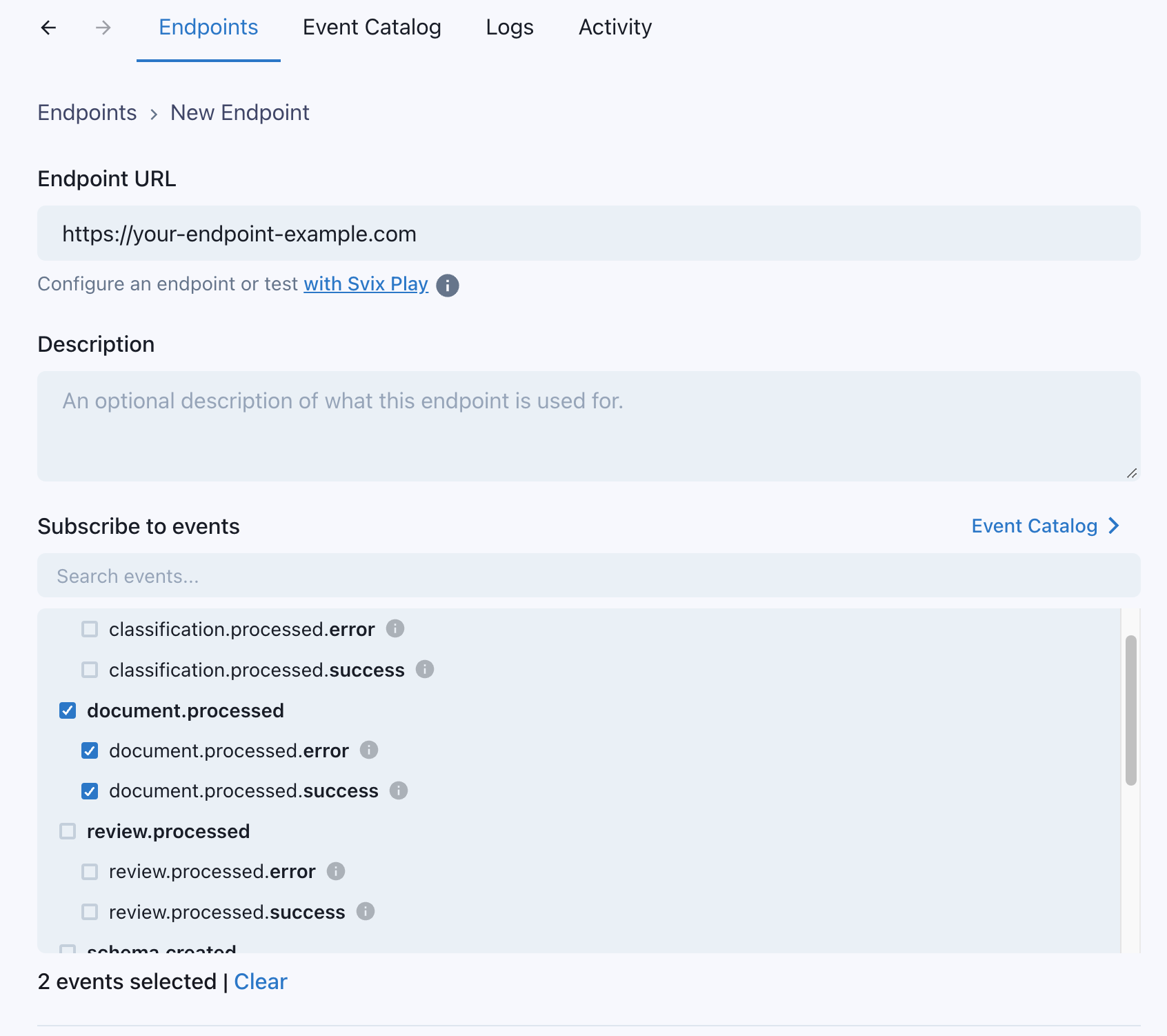
If you don't specify any event types, the endpoint receives all events. That's fine for testing, but filter the list later to the event types you actually want to handle, and make sure you return a success error code for all events.
Testing your endpoint
After creating an endpoint you can send a simulated event from the Testing tab. The message uses a mock documentId, but it mirrors the structure and headers of real traffic so you can validate your handler.
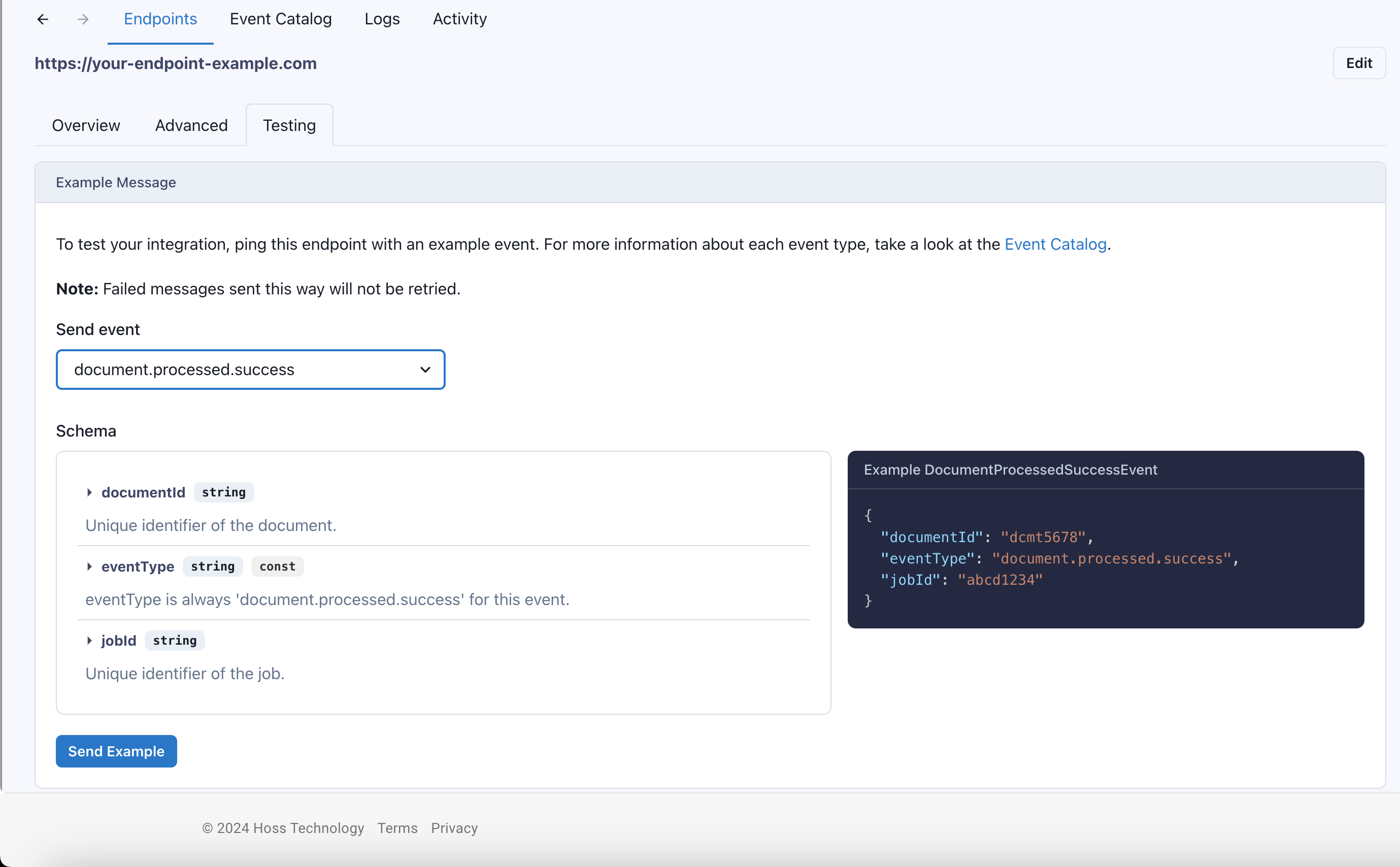
After sending an example event, click into it to review the payload, delivery attempts, and success/failure status.
Webhook Signature Verification (optional)
Webhook signatures are your way to verify that messages truly came from DocuPipe. Verification is optional, but it prevents third parties from spoofing events or overloading your service with irrelevant messages.
How to verify webhooks with Svix Libraries
We recommend using the verification helpers is provided by a third-party called Svix:
import { Webhook } from "svix";

const secret = "whsec_MfKQ9r8GKYqrTwjUPD8ILPZIo2LaLaSw";

// Headers and payload arrive from DocuPipe in the request your endpoint receives
const headers = { /* ... */ };
const body = "raw request body";

const wh = new Webhook(secret);
// Throws on error, returns the verified content on success
const payload = wh.verify(body, headers);
For more instructions and examples of how to verify signatures, check out their webhook verification documentation.
Retries
We deliver every webhook message with exponential backoff. If your endpoint is unavailable we retry rapidly at first, then wait progressively longer to give your service time to recover.
The schedule
Each failure triggers the next attempt on the following timeline:
- Immediately
- 5 seconds
- 5 minutes
- 30 minutes
- 2 hours
- 5 hours
- 10 hours
- 10 additional hours
If an endpoint is disabled or deleted we stop retrying. Altogether you have just over 27 hours to accept a webhook before we mark it as permanently undelivered.
Manual retries
From the DocuPipe portal you can retry an individual message at any time, or choose Recover failed messages to replay everything that failed after a specific timestamp.
Troubleshooting Verification Failures
There are some common reasons why your webhook endpoint is failing to verify the signature (if you choose to use verification):
Not using the raw payload body
This is the most common issue. When generating the signed content, we use the raw string body of the message payload.
If you convert JSON payloads into strings using methods like stringify, different implementations may produce different string representations of the JSON object, which can lead to discrepancies when verifying the signature. It's crucial to verify the payload exactly as it was sent, byte-for-byte or string-for-string, to ensure accurate verification.
Missing the secret key
Double-check that you're using the signing secret from the webhook dashboard. It is not the same as your DocuPipe API key, and each endpoint has its own secret.
Other Common mistakes
Sending the wrong response codes
DocuPipe treats any 2xx response as a success, even if the body says otherwise. Return a non-2xx status when you want us to retry.
Responses timing out
We consider any message that takes longer than ~15 seconds to respond a failure. If your endpoint performs heavy work, enqueue the payload for asynchronous processing so you can acknowledge receipt immediately.
Failure Recovery
Re-enable a disabled endpoint
If all attempts to a specific endpoint fail for five consecutive days we disable it automatically. Re-enable it from the webhook dashboard by selecting the endpoint and clicking Enable Endpoint.
Recovering/Resending failed messages
Why Replay
- If your service has downtime
- If your endpoint was misconfigured
If you want to replay a single event, locate the message in the UI, open the options menu, and choose Resend.
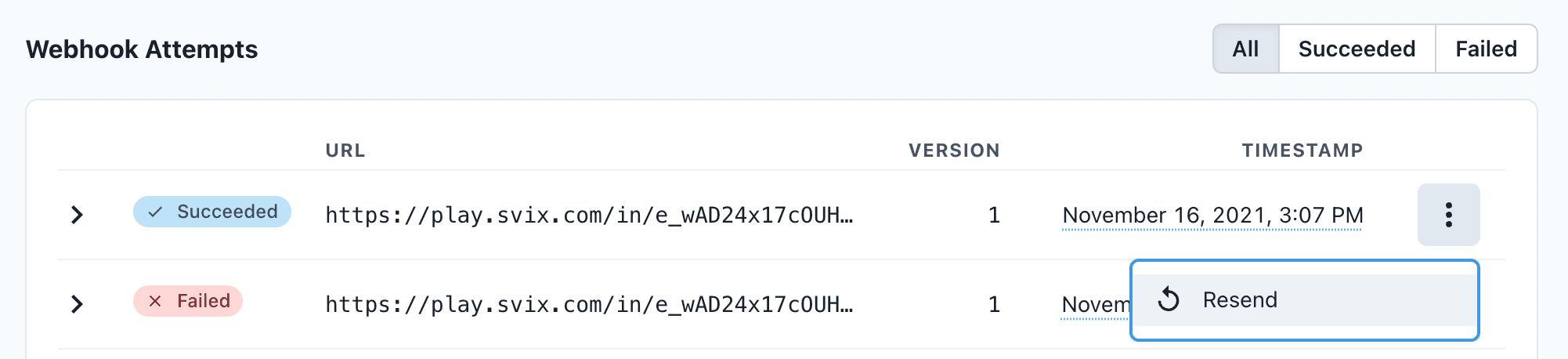
To recover from a larger outage, go to the endpoint details page and select Options > Recover Failed Messages.
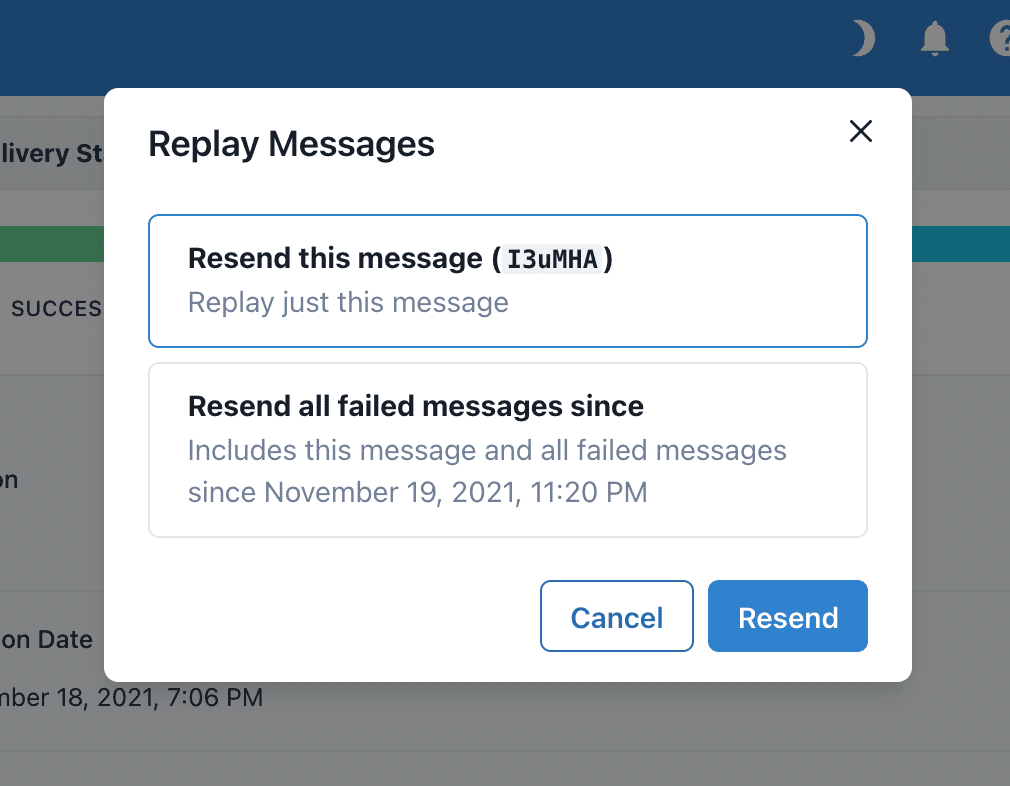
Pick the time window you want to replay. For granular recovery (e.g., replay everything after a specific timestamp), open any failed message and choose Replay all failed messages since this time.
IP Whitelist
If your webhook endpoint sits behind a firewall or NAT, contact DocuPipe Support so we can provide the outbound IPs to whitelist.